
How do I fix the white blinking light on my Xfinity router?
How to Fix a Blinking White Light on Your Xfinity Router
Are you experiencing a blinking white light on your Xfinity router? Don’t worry, there are a few easy fixes you can try to resolve this issue. Here are some key points to help you troubleshoot:
- Check for a local outage or maintenance in your area. Sometimes, the blinking light can indicate an issue with your internet service provider.
- Activate your Xfinity gateway. Ensure that your router is properly activated and connected to the network.
- Inspect your cables and wall jack. Make sure all cables are securely connected and there are no physical damages.
- Power cycle your modem/router. Unplug the power source, wait for a few seconds, and then plug it back in. This can often resolve minor connectivity issues.
- Update the firmware of your router. Check for any available firmware updates and install them.
- Reset your router. Locate the reset button on the back of the gateway and use a non-metallic pointed object to hold it for 30 seconds. Alternatively, if there is no reset button, try holding the WPS button for 30 seconds.
- Check for overheating. Ensure that your router is not overheating, as excessive heat can cause performance issues. Give it enough ventilation and consider using a cooling pad if necessary.
- Check for overloading. If you have too many devices connected to your router, it may struggle to handle the load. Disconnect any unnecessary devices or consider upgrading to a higher-capacity router.
Here are some frequently asked questions and detailed answers:
1. Why is my Xfinity router showing a white light but no internet?
If your Xfinity router has a white light but no internet connection, it could indicate an outage in your area. In such cases, you will need to wait for the internet service to be restored.
2. Where is the reset button on the Xfinity router with a white light?
The reset button is usually located on the back of the Xfinity router. To perform a reset, use a non-metallic pointed object, such as a toothpick, to hold in the reset button for 30 seconds until all the LED lights power off. If your router does not have a reset button, look for the WPS button and hold it for 30 seconds.
3. What color should the light be on my Xfinity modem?
The light on your Xfinity modem can indicate different statuses. Here is a quick reference:
| Light Activity | Status of Device |
|---|---|
| No light | Off |
| White steady light or white steady light with purple tint (post-activation) | On/Operational |
| White steady or blinking light / white steady or blinking light with purple tint (during activation) | Limited Operational |
| Red steady light | No Internet connection |
4. Why is my router light blinking but there is no internet?
If your modem lights are blinking but there is no internet connection, you can try a few troubleshooting steps. First, restart your modem and check the ethernet cable connection. If the issue persists, try using a different ethernet cable.
5. Why is my router constantly blinking?
If your router’s LED keeps blinking, it could indicate a connectivity issue. Here are a few things to check:
- Ensure the ethernet cable connecting the router is properly plugged in on both ends.
- Try using a different ethernet cable to connect the internet bridge to your router.
6. Why is my Xfinity modem blinking but there is no internet?
If your Xfinity modem is blinking but there is no internet, it could be due to loose, broken, or damaged cables. Check all cables to ensure they are properly connected and not damaged. Reinserting loose cables can also help resolve the issue.
7. How do I reset my router?
To reset your router, you can use a paperclip or a similar tool. Locate the reset button on your router and press and hold it for a few seconds. This will restore the router to its default settings.
8. How can I get my Xfinity router to work again?
If your Xfinity router is not working, try power cycling it by unplugging the power source for a minute and then plugging it back in. Additionally, ensure that your account is up to date on payments by checking the billing tab in your Xfinity account.
9. What does a white light on the Xfinity modem mean?
A solid white light on the power LED of your Xfinity modem indicates that the router is functioning properly and ready for use. A blinking white light can indicate booting up or potential issues with the router.
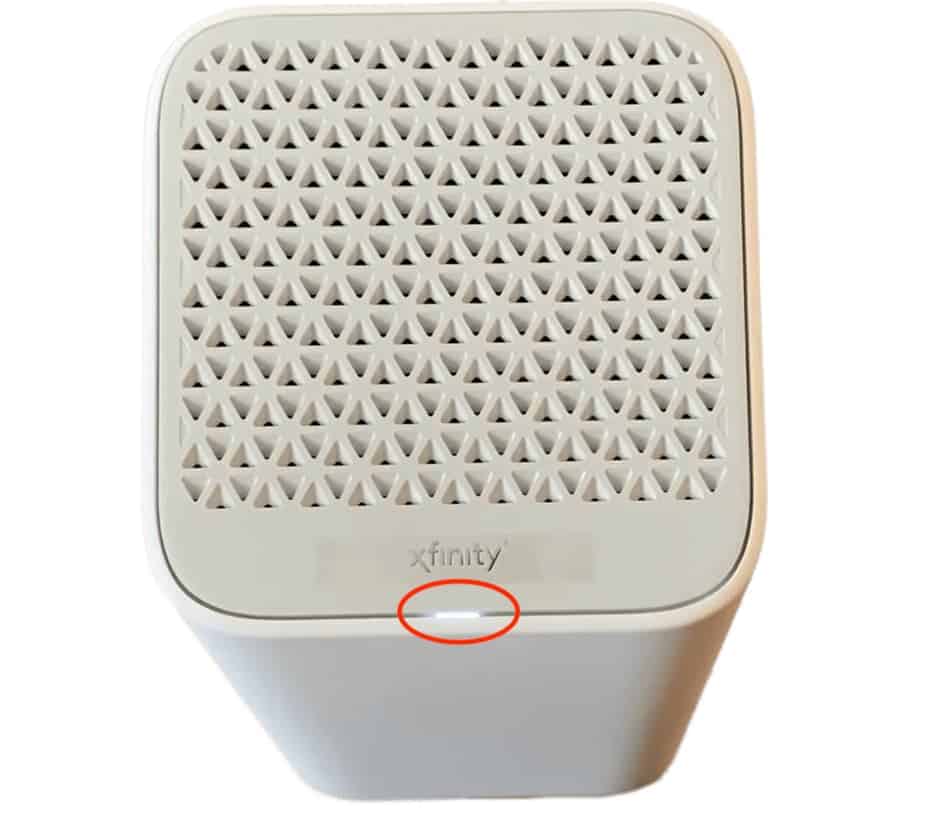
How do I fix my Xfinity router blinking white
Easy Fixes For The Xfinity Blinking White LightCheck for a Local Outage or Maintenance.Xfinity Gateway Activation.Cable and Wall Jack Inspection.Modem/Router Power Cycle.Update Firmware.Reset the Router.Check the Router for Overheating.Check the Router for Overloading.
Why is my Xfinity router white light but no internet
If the light is white, it means that your internet connection is working fine and everything is working as it should. If your router has a white light but no internet, that typically means there was an outage. You will have to wait for some time for the internet service to restore.
Where is the reset button on the white Xfinity router
Locate the Reset button on the back of the gateway and use a non-metallic pointed object (such as a toothpick) to hold in the Reset button for 30 seconds until all the LED lights power off. If your gateway does not have a Reset button, locate the WPS button and hold it for 30 seconds.
What color should the light be on my Xfinity modem
Device Status and Light Activity
| Light Activity | Status of Device |
|---|---|
| No light | Off |
| White steady light or white steady light with purple tint (post-activation) | On/Operational |
| White steady or blinking light / white steady or blinking light with purple tint (during activation) | Limited Operational |
| Red steady light | No Internet connection |
Cached
Why is my router light blinking but no internet
If the modem lights blink, but there is no internet connection, you can try a few troubleshooting steps, like restarting your modem. The next thing to do would be to check the ethernet cable and try a different one.
Why is my router just blinking
If the 'Router' LED keeps blinking, please check the following points: Check the Ethernet cable connecting the Internet Bridge to the router. Make sure the cable is properly plugged in on both ends. Try a different Ethernet cable for connecting the Internet Bridge to your router.
Why is my Xfinity modem blinking but no internet
Check for loose, broken, and damaged cables
Since one of the causes of a blinking modem is cables, you should check them to see whether they are properly connected. If they are loose, you can remove them and then re-insert them. Also, check whether the cables are connected to their respective outlets and ports.
What button do I press to reset my router
Another way is by using this rare and handy tool called a paperclip i can unfold it a little bit to get the sharp point out. And sometimes it'll be a little reset switch right here that i can. Just
How do I get my Xfinity router to work again
Unplug your equipment, wait one minute, and then plug it back in. This method, known as powercycling or restarting, can fix many connection problems. Make sure your account is up to date on payments by going to the Billing tab in your account. (You may be asked to sign in using your Xfinity ID and password first.)
What does a white light on Xfinity modem mean
You should see a solid white light on the power LED of your Xfinity router. This means that your router is working properly and ready for use. What does a blinking white light mean on the Xfinity router A blinking white light denotes that your Xfinity router is either booting up or having some issues.
How do I fix my router power light blinking
5 Ways to Fix Blinking Light on RouterReboot the Router.Check for Defective Components.Reset the Router.Update Router Firmware.Contact your ISP.
How do I fix no internet on my wireless router
Step 3: Troubleshoot by problem typeDelete & re-add network.Check for problem apps.Restart the router & modem.Sign in to a public network.Reset all network settings.Check that hotspot is on.Contact your mobile carrier.
Why is my router blinking and not connecting
If the 'Router' LED keeps blinking, please check the following points: Check the Ethernet cable connecting the Internet Bridge to the router. Make sure the cable is properly plugged in on both ends. Try a different Ethernet cable for connecting the Internet Bridge to your router.
Why is my router blinking but not working
Some of the causes of a blinking light on your router include outdated firmware, damaged cables, faulty components, or network outages. Restarting or resetting your router often solves these networking issues but you can also update the firmware or contact customer support.
Why is my modem blinking and not working
A blinking light means you are having difficulty connecting to the internet. Ensure all telephone cable connections are tight and secure and reboot the modem and router (if applicable). POWER: A solid green light indicates the unit is properly connected to power. A blinking red light indicates a possible modem failure.
How do I fix my Xfinity router not connecting to the internet
Unplug your equipment, wait one minute, and then plug it back in. This method, known as powercycling or restarting, can fix many connection problems. Make sure your account is up to date on payments by going to the Billing tab in your account. (You may be asked to sign in using your Xfinity ID and password first.)
Does unplugging a router reset it
Whatever style of modem/router you have, you can do a manual reboot by unplugging the power cable (typically black) from the power port on the back of the router.
Is it safe to press the reset button on the router
So when should you press the Reset button We suggest only pressing the Reset button if you wish to clear your device of all configurations (intentionally) or if you cannot recover your network password (in the case of routers) and have attempted all other methods of troubleshooting.
How do I fix my Xfinity router not connecting to the Internet
Unplug your equipment, wait one minute, and then plug it back in. This method, known as powercycling or restarting, can fix many connection problems. Make sure your account is up to date on payments by going to the Billing tab in your account. (You may be asked to sign in using your Xfinity ID and password first.)
Why is my Xfinity router blinking and not working
Xfinity modem or router blinking white means your internet connection is unstable and getting interrupted. The reason behind this can be loose cables, bad WiFi signal strength, or even an unactivated device.
What lights should be on my Xfinity router
Xfinity modems will either display solid white, green, or red lights. A solid white light indicates the modem is activated, a solid green light indicates a stable internet connection, and a solid red light indicates connection issues.
How do I reset my router power
Reset Your Modem and Router (Power Cycle)
Unplug the router first, then unplug the modem. Neither of them have power buttons, so it's a matter of pulling the power cord out of the back of the modem or router. Leave the devices unplugged for 30 seconds, then plug the modem back in followed by the router.
Why is my router connected but no internet
There are several reasons why this might happen: Your computer's WiFi adapter is faulty. Your internet service provider (ISP) is down. Your computer has an incorrect internet protocol (IP) address.
How do I fix my router not connecting to my modem
Try these common fixes first.Restart your router. This fix works so often that it's always worth trying first.Switch Wi-Fi bands (2.4 GHz and 5 GHz)Test your Wi-Fi on different devices.Try a different Ethernet cable.Improve the position of your device and/or router.
How do I fix my router I can’t connect
Internet & networkUnplug the router and modem's power cords from the power outlet for 15 seconds.Plug the power cords back in.Check that all cords and cables are secure at both ends.Wait a few minutes, until the lights on the modem and router are working right. (See the device manual or manufacturer's support site.)


0 Comments