
How do I stop my VPN from automatically closing in the background on my phone?
How to fix VPN automatically closed by phone in the background
1. Troubleshoot your internet connection: Check if your internet connection is stable and strong. Slow or unstable internet can cause VPN disconnections.
2. Change your VPN settings: Try changing the connection protocol or server location in your VPN settings. Sometimes, certain settings can cause automatic disconnections.
3. Check your firewall settings: Ensure that your firewall or antivirus software is not blocking the VPN connection. Adjust the settings to allow the VPN to connect without interference.
4. Switch DNS servers and provider: DNS issues can sometimes cause VPN disconnections. Try using different DNS servers or switch to a different VPN provider to see if the problem persists.
5. Update your VPN client: Make sure you have the latest version of your VPN client installed. Outdated software may have compatibility issues that can lead to automatic disconnections.
6. Reinstall your VPN client: If updating the client doesn’t solve the issue, try uninstalling and reinstalling the VPN client. This can fix any corrupted files or settings that may be causing the problem.
7. Disable the device’s Power Saving feature: Power Saving mode on your device can interfere with VPN connections. Disable this feature or adjust the settings to allow the VPN to stay connected.
8. Enable the Always-On VPN feature: Some VPN clients have an Always-On feature that ensures the VPN stays connected at all times. Enable this feature in your VPN settings.
9. Restart the device: Sometimes, a simple restart can resolve connectivity issues. Restart your phone or computer and see if the VPN disconnects persist.
10. Clear cache and data: If none of the above solutions work, clearing the cache and data of your VPN client may help. This will reset any temporary files or settings that could be causing the disconnections.
11. Why does my VPN keep turning off on my phone
The most common cause of VPN disconnections on phones is reaching the device limit allowed by your VPN provider. If you exceed the number of simultaneous connections allowed, the VPN may start randomly disconnecting.
12. Why does my VPN disconnect automatically on Android
In some cases, the issue may be with your router rather than the device or VPN app. Try restarting the router and checking if the connection remains stable afterward.
13. How do I keep VPN on all the time
You can easily keep your VPN on all the time by using a VPN app on your phone, tablet, or computer. Most apps have options to automatically turn on the VPN when you start your device and even disconnect from the internet if the VPN disconnects.
14. How do I keep VPN active on my iPhone
To keep your VPN active on an iPhone, you need to add a VPN first. Then, go to Settings > General > VPN & Device Management > VPN and toggle on the Status switch to enable the VPN.
15. How do I stop my VPN from automatically disconnecting
If your VPN keeps disconnecting, try changing the port of the VPN protocol you use to connect. Additionally, you can try using the WireGuard VPN protocol or IPSec with IKEv2 VPN protocol instead.
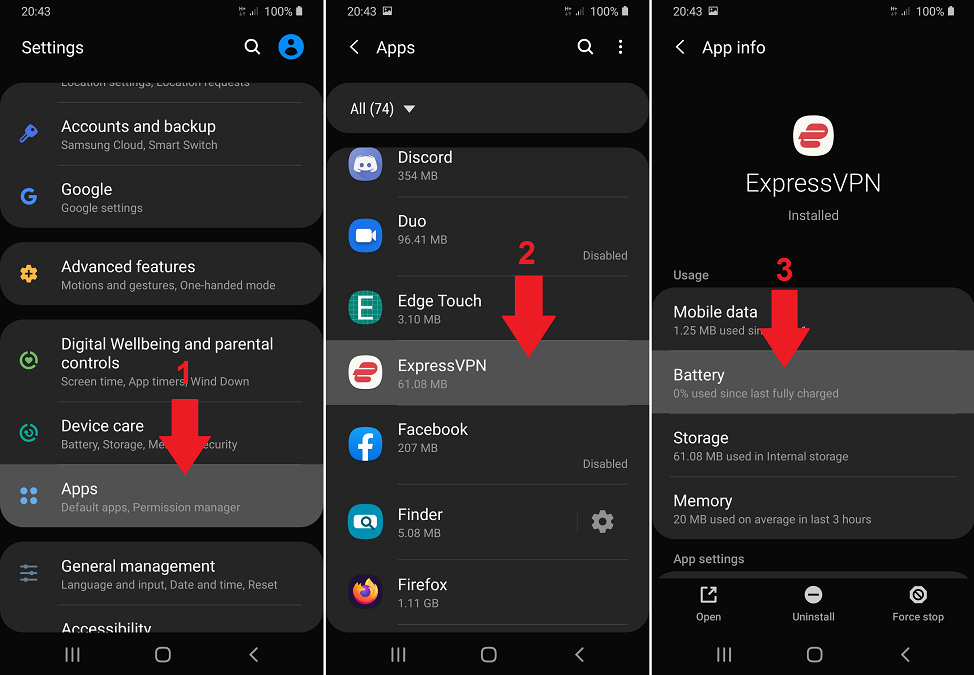
How to fix VPN automatically closed by phone in the background
Guide to fix the Android VPN disconnects automatically issueTroubleshoot your internet connection.Change your VPN settings.Check your firewall settings.Switch DNS servers and provider.Update your VPN client.Reinstalling your VPN client.Disable the device's Power Saving feature.Enable the Always-On VPN feature.
Cached
Why does my VPN keep turning off on my phone
One of the most common causes of why your VPN connection keeps disconnecting is that you possibly have reached the device limit allowed by your VPN provider. Most commonly, you get 5-10 simultaneous connections per subscription. If you exceed this number, then your VPN may start randomly disconnecting.
Cached
Why does my VPN disconnect automatically on Android
Restart the router:
The VPN keeps disconnecting when you are using a VPN and connected to the internet. The problem is with your router, not with your device or VPN app. All that you have to do is to restart the router and then check if the connection is complete or not.
Cached
How do I keep VPN on all the time
Using a VPN app
On your phone, tablet, or computer, you can easily turn on your VPN app and leave it running at all times. Most apps have the option to turn VPN on automatically when you turn on your device, and some even have the ability to disconnect you from the internet if your VPN disconnects.
How do I keep VPN active on my iPhone
A Virtual Private Network (VPN) can only be turned on or off after a VPN has been added.From a Home screen on your Apple® iPhone®, navigate: Settings. General. .Tap. VPN & Device Management. . If unavailable, tap.Tap. VPN. .From the 'VPN Configurations' section, tap the. Status switch. to turn on or off .
How do I stop my VPN from automatically disconnecting
What can you doChange the port of the VPN protocol you use to connect, see how to change ports/protocols.Try WireGuard VPN protocol – available in all of our native apps for macOS, iOS, Windows, Linux and Android.Try IPSec with IKEv2 VPN protocol.
How do I keep my VPN connection alive on my iPhone
One way to ensure that your iOS Device auto connects to the VPN is to enable “Connect on Demand” within your iOS VPN Settings, by going to General> VPN & Device Management> VPN> Private Internet Access.
How do I keep my Android VPN connected
If you haven't already, add a VPN.Open your phone's Settings app.Tap Network & internet. VPN.Next to the VPN you want to change, tap Settings .Turn Always-on VPN on or off. If you've set up a VPN through an app, you won't have the always-on option.If needed, tap Save.
How do I keep VPN on all the time on iPhone
One way to ensure that your iOS Device auto connects to the VPN is to enable “Connect on Demand” within your iOS VPN Settings, by going to General> VPN & Device Management> VPN> Private Internet Access.
How do I get my VPN to stay on my iPhone
A Virtual Private Network (VPN) can only be turned on or off after a VPN has been added.From a Home screen on your Apple® iPhone®, navigate: Settings. General. .Tap. VPN & Device Management. . If unavailable, tap.Tap. VPN. .From the 'VPN Configurations' section, tap the. Status switch. to turn on or off .
How do I stop my iPhone from turning off VPN
Here are our top tips below to prevent your VPN from ever being turned off.Make Sure the Auto-Connect option is switched on.Deactivate the kill switch.Switch off Low Power and Low Data Modes.Run Your VPN Connections over IKEv2.
Why wont VPN stay on iPhone
A simple way to get your VPN app back to normal is to reset the network settings on your device. Keep in mind that you need to sign in to your VPN and Wi-Fi networks again after doing this. To Reset Network Settings, go to Settings > General > Reset > Reset Network Settings and enter your passcode when prompted.
Why wont my VPN stay connected
A number of reasons can result in your VPN becoming disconnected. The most common causes are related to the stability of your internet connection, using old VPN software, slow internet speeds, and your VPN being blocked by other software like your firewall or antivirus.
Why won’t my VPN stay on on my iPhone
If you're unable to connect to a VPN on your iPhone, go to the Settings app > Wi-Fi and tap ⓘ for the connected network. From the next screen, turn off Private Wi-Fi Address and confirm by tapping Continue. Next, try to connect to a VPN and see if it works or not. If it doesn't, restart your iPhone and retry.
Why does VPN disappear on iPhone
On iPhone X and newer iPhones, the status bar was changed to only include essential icons because of the notch in the top of the screen. You can view the entire status bar by accessing the Notification Center.
How do I auto reconnect VPN on Android
Tap the settings (gear) icon in the upper-right corner. Tap “Auto-connect.” Select if you want to enable auto-connect on Wi-Fi, mobile networks, or always. By default, you will be connected to the fastest available server.
Where is VPN setting on Android phone
From Android settingsOpen the Settings app.Select “Network & internet.”Tap on the “VPN” option.Choose the settings option next to the VPN you want to edit.Select your preferences and save them.
Why is my VPN turning on and off on my iPhone
Go to Settings on your phone. Tap Network & internet then VPN. Tap the toggle next to your VPN to switch it off.
How do I keep VPN on all the time on my iPhone
A Virtual Private Network (VPN) can only be turned on or off after a VPN has been added.From a Home screen on your Apple® iPhone®, navigate: Settings. General. .Tap. VPN & Device Management. . If unavailable, tap.Tap. VPN. .From the 'VPN Configurations' section, tap the. Status switch. to turn on or off .
How do I keep my VPN active on my iPhone
One way to ensure that your iOS Device auto connects to the VPN is to enable “Connect on Demand” within your iOS VPN Settings, by going to General> VPN & Device Management> VPN> Private Internet Access.
How do I get my VPN to stay on on my iPhone
One way to ensure that your iOS Device auto connects to the VPN is to enable “Connect on Demand” within your iOS VPN Settings, by going to General> VPN & Device Management> VPN> Private Internet Access.
How do I make VPN always-on Android
Always-on VPNOpen your device's Settings app.Tap Network & internet. Advanced. VPN.Next to the VPN that you want to change, tap Settings.Switch Block connections without VPN to on.
How do I make VPN always on Android
Always-on VPNOpen your device's Settings app.Tap Network & internet. Advanced. VPN.Next to the VPN that you want to change, tap Settings.Switch Block connections without VPN to on.
How do I fix VPN on my Android phone
How to fix a VPN that's not workingCheck your internet connection.Try a different server location.Restart your device.Check your VPN settings and open ports.Disable firewall or antivirus.Reinstall your VPN software.
Why won’t my VPN stay connected on my iPhone
This could be due to issues with the VPN client, your router, or your network connection. You can fix this by updating your VPN or router software, changing your VPN settings, or disabling power-saving features on your device.


0 Comments