
Where is my Device Manager?
Summary of the Article: Where is my Device Manager?
In this article, I will provide answers to fifteen frequently asked questions about the Device Manager in Windows 10. The Device Manager is a useful tool for managing and troubleshooting hardware devices on your computer. Here are the key points:
1. Why can’t I find my Device Manager?
To find the Device Manager on an Android device, go to Settings, then select “Security” and scroll down to “Device administrators” to ensure that “Android Device Manager” is checked.
2. Where is Device Manager in Windows 10?
To access the Device Manager in Windows 10, click on the “Start” button, then go to “Settings” and click on “System”. From there, click on “About” and scroll down until you see “Device Manager”.
3. What is the shortcut for Device Manager?
The shortcut to open the Device Manager is to press the Win + R keys to open the Run command dialog box, then type CMD and press Ctrl + Shift + Enter to open an elevated Command Prompt. Type “devmgmt.msc” and press Enter to open the Device Manager.
4. How do I open Device Manager in Windows 10 Command Prompt?
To open Device Manager using the Command Prompt in Windows 10, click on the Start Menu or the Search Bar, type CMD, and press Enter. Then type “devmgmt.msc” and press Enter. The Device Manager will open.
5. How do I enable Device Manager?
To enable Windows device management, sign in to your Google Admin console and go to Menu > Devices > Mobile and endpoints > Settings. Click on “Windows management setup” and select “Enabled” next to Windows device management.
6. How do I reinstall Device Manager?
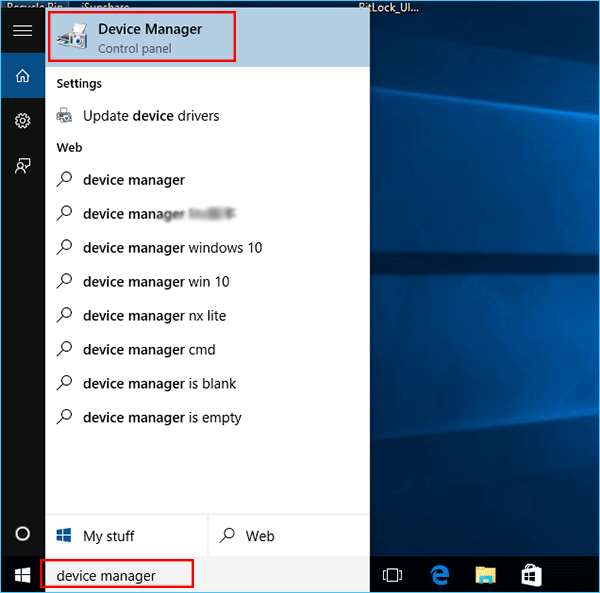
To reinstall a device driver, open the Device Manager by searching for “device manager” in the taskbar search box. Right-click on the name of the device and select “Uninstall”. Restart your PC and Windows will attempt to reinstall the driver.
7. How do I see all devices in Device Manager?
To view hidden devices in the Device Manager, press Win + R to open the Run dialog box, type “devmgmt.msc” and press Enter. Click on the “View” menu at the top and select “Show Hidden Devices”.
8. How do I open Device Manager in Windows 11?
To open the Device Manager in Windows 11, press the Windows + R keyboard shortcut to launch the Run box, type “devmgmt.msc” or “hdwwiz.cpl”, and click OK. The Device Manager window will appear.
9. How do I get to Device Manager in Control Panel?
To access the Device Manager through the Control Panel, click on the Start menu and select “Control Panel”. Then, click on the “System and Security” category, followed by the “System” link. Finally, click on the “Device Manager” option on the left-hand side of the screen.
10. Can you open Device Manager with Command Prompt?
Yes, you can open the Device Manager using the Command Prompt. Press the Windows key + R to open the Run box, type “cmd”, and press Ctrl + Shift + Enter. Type “devmgmt.msc” and press Enter, and the Device Manager will open.
11. Can you access Device Manager from Command Prompt?
Yes, you can access the Device Manager from the Command Prompt. Open the Command Prompt by pressing the Windows key + R, typing “cmd”, and pressing Ctrl + Shift + Enter. Input your administrator account credentials, then type “devmgmt.msc” and press Enter.
(Continued in the next paragraph)
Summary of the Article: Where is my Device Manager? (Continued)
12. How do I find Device Manager in Windows 10 using the Control Panel?
To find the Device Manager in Windows 10 using the Control Panel, go to the Start menu and click on the “Control Panel” option. Then, click on the “System and Security” category, followed by the “System” link. Finally, click on the “Device Manager” option on the left-hand side of the screen.
13. How do I open the Device Manager in Safe Mode?
To open the Device Manager in Safe Mode, restart your computer and keep pressing the F8 key until the Advanced Boot Options menu appears. Select “Safe Mode” and press Enter. Once in Safe Mode, open the Device Manager by searching for “device manager” in the taskbar search box.
14. How do I update drivers in Device Manager?
To update drivers in Device Manager, open the Device Manager by searching for “device manager” in the taskbar search box. Right-click on the device you want to update and select “Update driver”. Windows will search for the latest driver software online and install it.
15. How do I fix device driver problems in Device Manager?
To fix device driver problems in Device Manager, open the Device Manager by searching for “device manager” in the taskbar search box. Right-click on the device with the driver problem and select “Update driver”. If that doesn’t work, you can also try uninstalling the device driver and then reinstalling it.
Why can’t i find my Device Manager
Select "Security" from the Settings menu. Scroll down and tap "Device administrators". Ensure that "Android Device Manager" is checked.
Cached
Where is Device Manager in Windows 10
From the Start window, Click on 'Settings'. From the 'Settings' window, Click on 'System' Page 4 On the Systems window, Click on 'About'. After the 'About' related information appears, scroll down until you see 'Device Manager'.
What is the shortcut for Device Manager
Press Win + R to open the Run command dialog box. Type CMD and press Ctrl + Shift + Enter to open an elevated Command Prompt. Type devmgmt. msc and press Enter to open the Device Manager.
Cached
How do I open Device Manager in Windows 10 Command Prompt
Command Prompt MethodClick the Start Menu or the Search Bar (Figure 3 & 4). Figure 3. Figure 4.Type CMD and this should bring up a Command Prompt (Figure 5). Figure 5.Type devmgmt.msc.Press the Enter key.Device Manager opens (Figure 6). Figure 6.
How do I enable Device Manager
Step 2: Enable Windows device managementSign in to your Google Admin console.In the Admin console, go to Menu Devices Mobile and endpoints Settings.Click Windows management setup.To apply the setting to everyone, leave the top organizational unit selected.Next to Windows device management, select Enabled.
How do I reinstall Device Manager
Reinstall the device driverIn the search box on the taskbar, enter device manager, then select Device Manager.Right-click (or press and hold) the name of the device, and then select Uninstall.Restart your PC.Windows will attempt to reinstall the driver.
How do I see all devices in Device Manager
How to View Hidden Devices in Windows Device ManagerStart by opening the Device Manager by pressing Win + R, typing “devmgmt. msc” in the text box, and pressing the Enter key.Click View on the top menu and select Show Hidden Devices.
How do I open Device Manager in Windows 11
Press Windows + R keyboard shortcut to launch the Windows Run box, type “devmgmt. msc” or “hdwwiz. cpl”, and click the OK button. Finally, the Device Manager window will appear.
How do I get to Device Manager in Control Panel
Use the Control Panel: Go to the Start menu and click on the "Control Panel" option. Then, click on the "System and Security" category, followed by the "System" link. Finally, click on the "Device Manager" option on the left-hand side of the screen.
Can you open Device Manager with Command Prompt
Command Prompt Method
Click the Start Menu or the Search Bar (Figure 3 & 4). Type CMD and this should bring up a Command Prompt (Figure 5). Press the Enter key. Device Manager opens (Figure 6).
Can you access Device Manager from Command Prompt
Open the cmd prompt by pressing the Windows key + R and typing in cmd, then press Ctrl + Shift + Enter. Input your administrator account credentials when prompted, then type devmgmt. msc and press Enter.
What is Device Manager and how do I get to Device Manager
To start Device Manager, you can launch the Start Menu search functionality and search for "Device Manager". Alternatively, in File explorer, select and hold (or right-click) This PC, select Manage, and then select Device Manager from the System Tools that are listed in the resulting dialog.
How do I open Device Manager in Chrome
And also any settings or policies on a user or device settings basis to access device management simply click on device management from the home screen or the main menu. Once you select that on the
What happens if I uninstall device from Device Manager
The "Disable device" option disables the device, making it inaccessible, after disabling it, in Device Manager, it will show a down arrow on the icon meaning that the device is disabled, you can right-click it and select "enable device" to re-enable the device and access it.
How do I uninstall and reinstall Device Manager
The process is similar to updating the driver.Open the Device Manager again by right-clicking the Windows icon and selecting Device Manager.Use the menu to locate the device you want to reinstall.Right-click the device you need to reinstall and in the menu, choose Uninstall device.Restart your PC.
Why are devices hidden in Device Manager
Any device that isn't connected to the computer, but still has entries in the Windows Registry, is hidden by default so that you're not bombarded with every device you've ever installed when you open the Device Manager.
Where is drive manager in Windows 11
To open Disk Management, right-click (or long-press) the Start button and select Disk Management. If you need help freeing up space on your PC, see Disk cleanup in Windows or Free up drive space in Windows.
How do I update Device Manager in Windows 11
Best Ways to Update Drivers on Windows 11Press Windows + X > Device Manager.This will open the Device Manager window. Here look for the driver you wish to update. Right-click on it > select 'Update driver: from the context menu.You will now get two options:-
How do I see devices in Command Prompt
Type CMD in the search box and click Run as Administrator from the menu. Enter the net view command to view devices connected to your network You will then see a list of devices connected to your network in the output.
How do I bring up Device Manager
Use the Run dialog box: Press the Windows key + R on your keyboard to open the Run dialog box. Then, type "devmgmt. msc" in the box and press Enter. Use the Power User Menu: Right-click on the Windows icon in the bottom left corner of your screen and select "Device Manager" from the Power User Menu.
How do I turn on device management
And without further ado let's jump right into it. So we're going to start by opening up the Start menu. And you want to just type in device manager into. It best man should say device manager.
Can you reinstall Device Manager
Reinstall the device driver
In the search box on the taskbar, enter device manager, then select Device Manager. Right-click (or press and hold) the name of the device, and then select Uninstall. Restart your PC. Windows will attempt to reinstall the driver.
What happens if I Uninstall device from Device Manager
The "Disable device" option disables the device, making it inaccessible, after disabling it, in Device Manager, it will show a down arrow on the icon meaning that the device is disabled, you can right-click it and select "enable device" to re-enable the device and access it.
Why are my drives not showing up Windows 11
Each Windows 11/10 upgrade comes with some hardware compatibility issues. If the device driver is incompatible with your current Windows version, it is very likely to cause a hard drive missing problem. To fix the problem, you need to update your disk driver to the latest version or reinstall it in Device Manager.
How do I access my hard drive on Windows 11
To get Windows 11 to read your external hard drive, you'll need to connect it to your computer using a USB cable. Once it's connected, you can access it by going to My Computer or This PC and double-clicking on the drive.


0 Comments